The iPhone voicemail system keeps a copy of every message you delete for a set period before removing it for good. That copy sits in a folder called Deleted Messages, and it still counts against your storage limit until you empty that folder or the retention window passes.
Visual Voicemail on an iPhone works differently from a basic answering machine. Deleting a message from the main list only marks it as deleted.
The audio file and its metadata remain on the device, and in many cases on your carrier’s voicemail server, until a second deletion step clears them out.
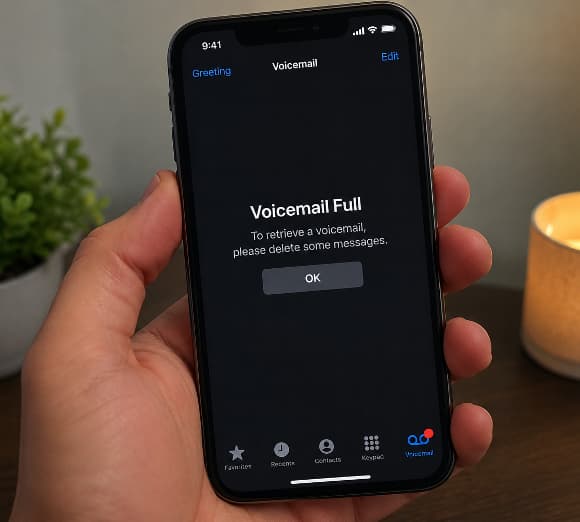
This two step deletion process is the single most common reason people see a full mailbox right after clearing every visible message.
See This: Common Causes of iPhone Keep Vibrating
The Deleted Messages Folder is Usually the Real Problem
Open the Phone app and tap the Voicemail tab in the lower right corner. Scroll to the very bottom of the list, below your active voicemails, and look for a folder called Deleted Messages.
Tap into that folder. If it contains recordings, tap Clear All in the top right corner and confirm the action when prompted.
This step permanently removes the audio files that were still occupying storage space even though they no longer appeared in your main voicemail list.
On most iPhones this single fix resolves the full mailbox warning within a minute or two, since the phone recalculates available voicemail space as soon as the folder empties.
Carrier Side Storage Can Keep Your Mailbox Full Too
Voicemail on an iPhone is not stored only on the device. Your carrier, whether that is Verizon, AT&T, T Mobile, or a smaller provider, also keeps a copy of your voicemail box on its own servers to support features like remote access and visual transcription.
If you deleted every message on your iPhone but the carrier’s server has not synced that change, the mailbox can still report as full to anyone calling you.
This mismatch happens most often after a poor cellular connection, a recent SIM swap, or a carrier system update.
The table below breaks down where each type of voicemail storage lives and how to clear it.
| Storage Location | What It Holds | How To Clear It |
|---|---|---|
| Phone app Voicemail tab | Active, unread and read voicemails | Swipe left on a message and tap Delete |
| Deleted Messages folder | Recently deleted voicemails still counted toward storage | Open the folder and tap Clear All |
| Carrier voicemail server | A separate copy tied to your phone number | Call your carrier and request a manual mailbox reset |
| Visual Voicemail cache | Local metadata linking your phone to the carrier box | Toggle Visual Voicemail off and back on, or restart the phone |
How To Permanently Delete Voicemails on iPhone
Start with the basic deletion, then follow through with the permanent clear so nothing lingers in storage.
Open the Phone app and select Voicemail. Tap a message you want to remove, then tap the trash can icon, or tap Edit in the top left corner to select and delete several messages at once.
After deleting from the main list, go to the bottom of the screen, open Deleted Messages, and tap Clear All. This second step is the part most people skip, and skipping it is why the mailbox still reads as full.
If you want messages gone immediately without waiting for the retention window, repeat this two step process every time you delete voicemails rather than only clearing the main list.
Check More: Solutions of iPhone Overcome 80% Charging
Quick Fixes When Deleting Does Not Solve It
Sometimes both the main voicemail list and the Deleted Messages folder are already empty, yet the phone or callers still get a full mailbox message. When that happens, the issue usually sits between your device and the carrier network rather than in the Phone app itself.
Restart the iPhone first. Go to Settings, then General, then Shut Down, and slide to power off before turning it back on. A restart clears temporary syncing errors between the device and the voicemail server.
Check for a software update next. Go to Settings, then General, then Software Update, and install anything available, since Apple has patched voicemail syncing bugs in past iOS releases.
Remove and reinsert your SIM card if your iPhone uses one, waiting about 30 seconds before putting it back in. This forces the phone to re register with the carrier’s voicemail provisioning system.
If those steps do not clear the warning, toggle Visual Voicemail off and back on through your carrier settings, or ask your carrier to disable and re enable Visual Voicemail on their end.
Conclusion
A full voicemail box that will not clear is almost never a sign of a broken phone. It is a storage and syncing issue split between two systems, the Phone app on your iPhone and your carrier’s voicemail server, and each one needs its own deletion step.
Clear the Deleted Messages folder first, then work through a restart, an update, or a SIM reseat if the warning persists, and call your carrier only after those steps fail to resolve it.
Comments are closed, but trackbacks and pingbacks are open.